> ## Documentation Index
> Fetch the complete documentation index at: https://statsig-4b2ff144-serverless-cloudflare.mintlify.site/llms.txt
> Use this file to discover all available pages before exploring further.
# Make a Decision
> Learn how to analyze experiment results and make informed decisions about launching, abandoning, or continuing experiments.
Making a decision for an experiment enables you to 'ship' the winning group to all your users.
After you make the decision, the variant that your users see depends on whether you're using a **targeting gate** for your experiment. The results for your experiment will still be accessible after you make a decision, but they will stop updating. The last day of metrics will be the day you "make a decision" on the experiment.
## Experiments With No Targeting Gate
When you ship a group in an experiment with no targeting gate, the parameter values from the shipped group will become the default values
for *all* your users going forward.
If the experiment happens to use parameters from a layer, the layer's parameters will now take on the shipped group's parameter values
as their defaults. These are the values that *all* your users will see going forward.
For example, suppose you have a **Demo Layer** that's configured with a parameter, **a\_param**. It's default value is set to *layer\_default* as shown below.
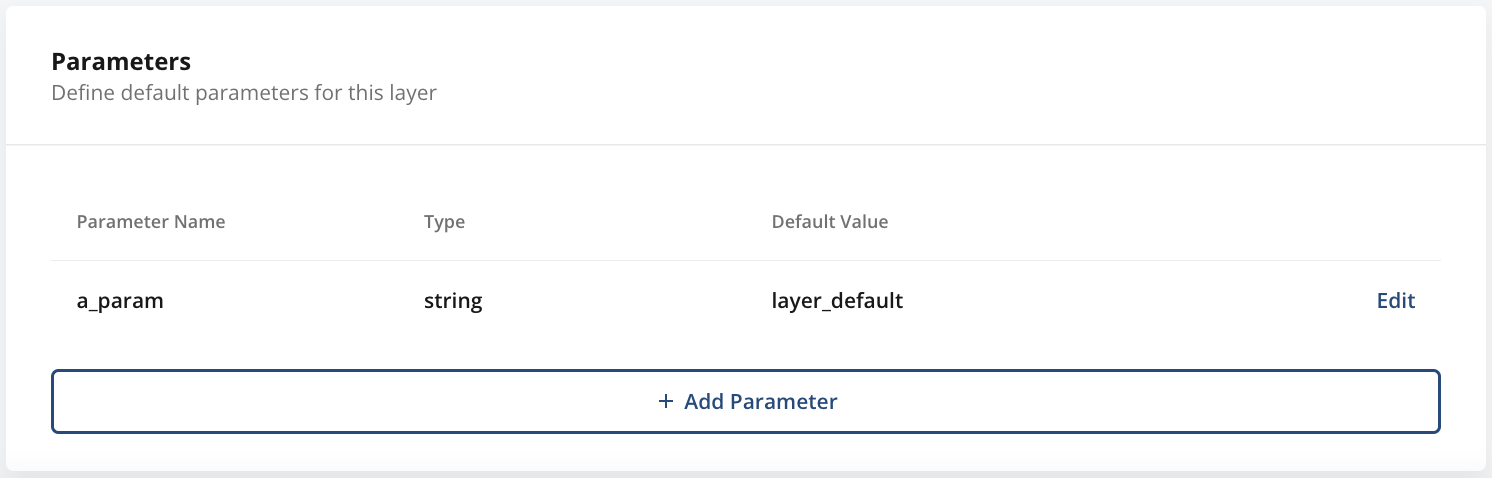 Say you decide to create an experiment, **Demo Experiment** in **Demo Layer** as shown below.
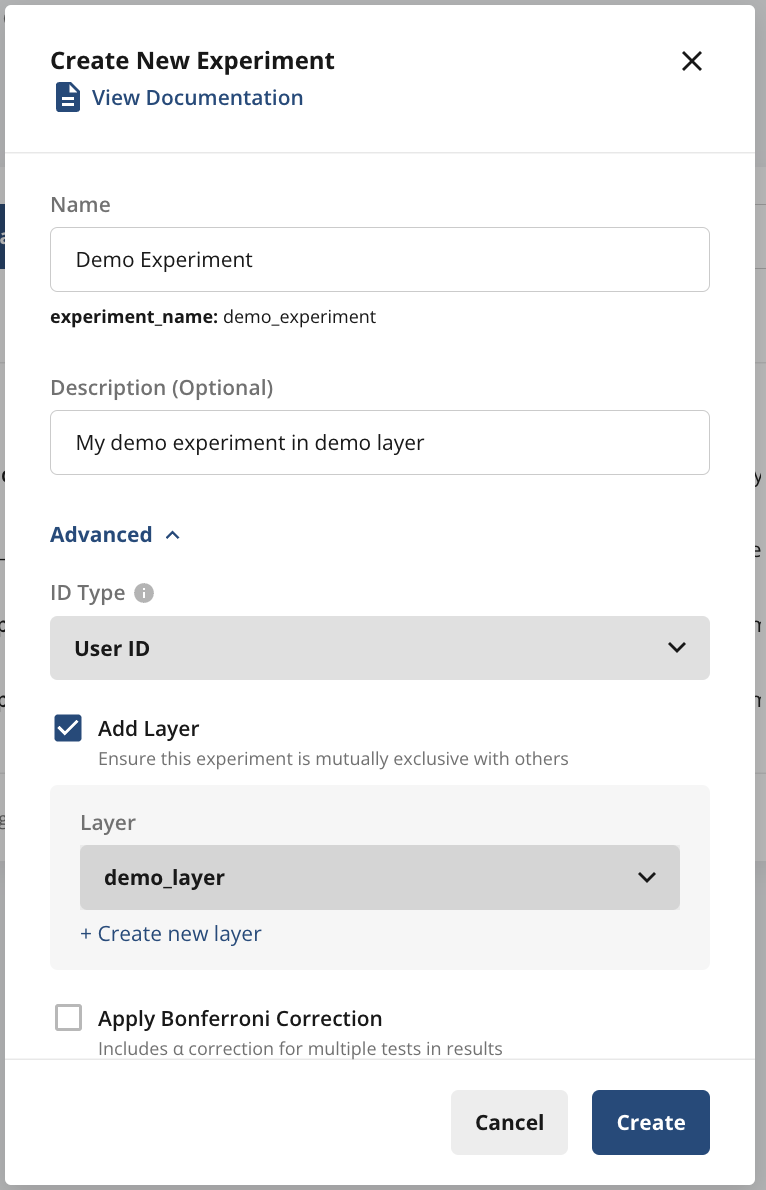 You set up **Demo Experiment** with two groups: **Control** and **Test**, intending to experiment with new values for the layer-level parameter, **a\_param** as shown below.
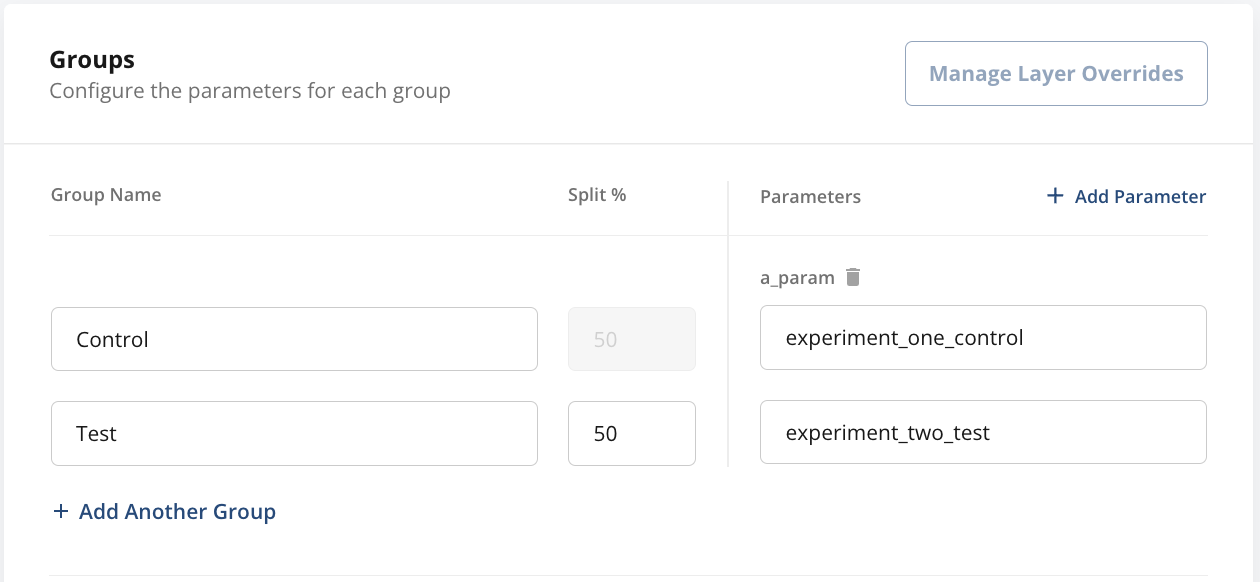 Now if you decide to ship the **Control** group for the **Demo Experiment**, **a\_param** will take the value set for the **Control** group as its default: *experiment\_one\_control*
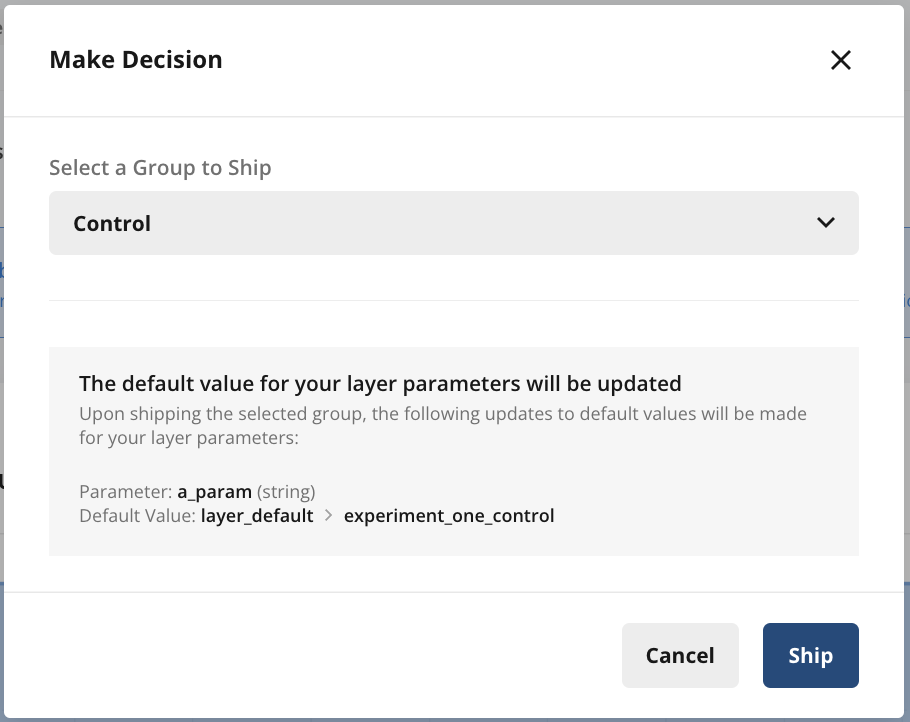 On the other hand, if you decide to ship the **Test** group, **a\_param** will take the value set for the **Test** group as its default: *experiment\_two\_test*
 ## Experiment With a Targeting Gate / Targeting Rules
When you decide to ship a group in an experiment configured with a targeting gate or targeting rules, you can decide whether to continue targeting after shipping.
* If you decide to *discontinue* targeting, the parameter values from the shipped group will become the default values for all your users going forward. If the experiment happens to use parameters from a layer, the layer's parameters will now take on the shipped group's parameter values as their defaults. These are the values that your users will see going forward.
* If you decide to *continue* targeting with a **targeting gate**, this will add an override to the experiment layer so that:
* all users who **pass** the targeting gate will see shipped group's parameter values
* all users who **fail** the targeting gate will see the default value (layer-level parameter defaults or the defaults you set for the parameter in your code)
* If you decide to *continue* targeting with **targeting rules**, the experiment will only be shipped to users who pass the inline targeting rules as set in the experiment setup.
**Shipping with Targeting On**
If you decide to continue targeting, shipping a group will not update the default value of any layer parameters.
For example, suppose **Demo Experiment** in a **Demo Layer** that has a parameter called **targeted\_layer\_param**, whose default value is set to
*targeted\_layer\_default\_value*.
When you decide to ship **Demo Experiment**, if you discontinue targeting,
**targeted\_layer\_param** will now take on the value from the **Control** group, *targeted\_layer\_control*, as its default.
## Experiment With a Targeting Gate / Targeting Rules
When you decide to ship a group in an experiment configured with a targeting gate or targeting rules, you can decide whether to continue targeting after shipping.
* If you decide to *discontinue* targeting, the parameter values from the shipped group will become the default values for all your users going forward. If the experiment happens to use parameters from a layer, the layer's parameters will now take on the shipped group's parameter values as their defaults. These are the values that your users will see going forward.
* If you decide to *continue* targeting with a **targeting gate**, this will add an override to the experiment layer so that:
* all users who **pass** the targeting gate will see shipped group's parameter values
* all users who **fail** the targeting gate will see the default value (layer-level parameter defaults or the defaults you set for the parameter in your code)
* If you decide to *continue* targeting with **targeting rules**, the experiment will only be shipped to users who pass the inline targeting rules as set in the experiment setup.
**Shipping with Targeting On**
If you decide to continue targeting, shipping a group will not update the default value of any layer parameters.
For example, suppose **Demo Experiment** in a **Demo Layer** that has a parameter called **targeted\_layer\_param**, whose default value is set to
*targeted\_layer\_default\_value*.
When you decide to ship **Demo Experiment**, if you discontinue targeting,
**targeted\_layer\_param** will now take on the value from the **Control** group, *targeted\_layer\_control*, as its default.
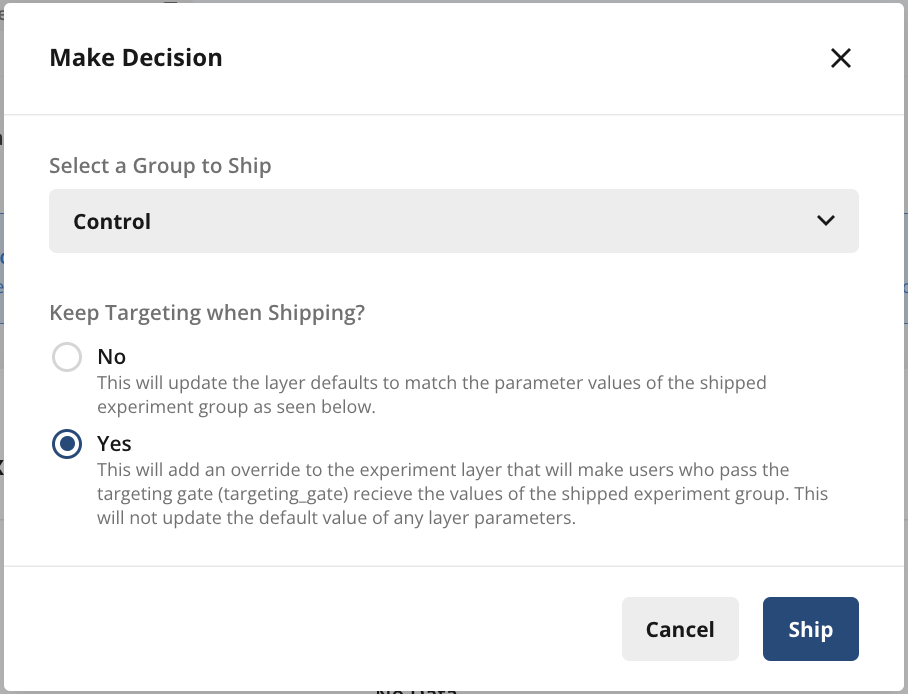
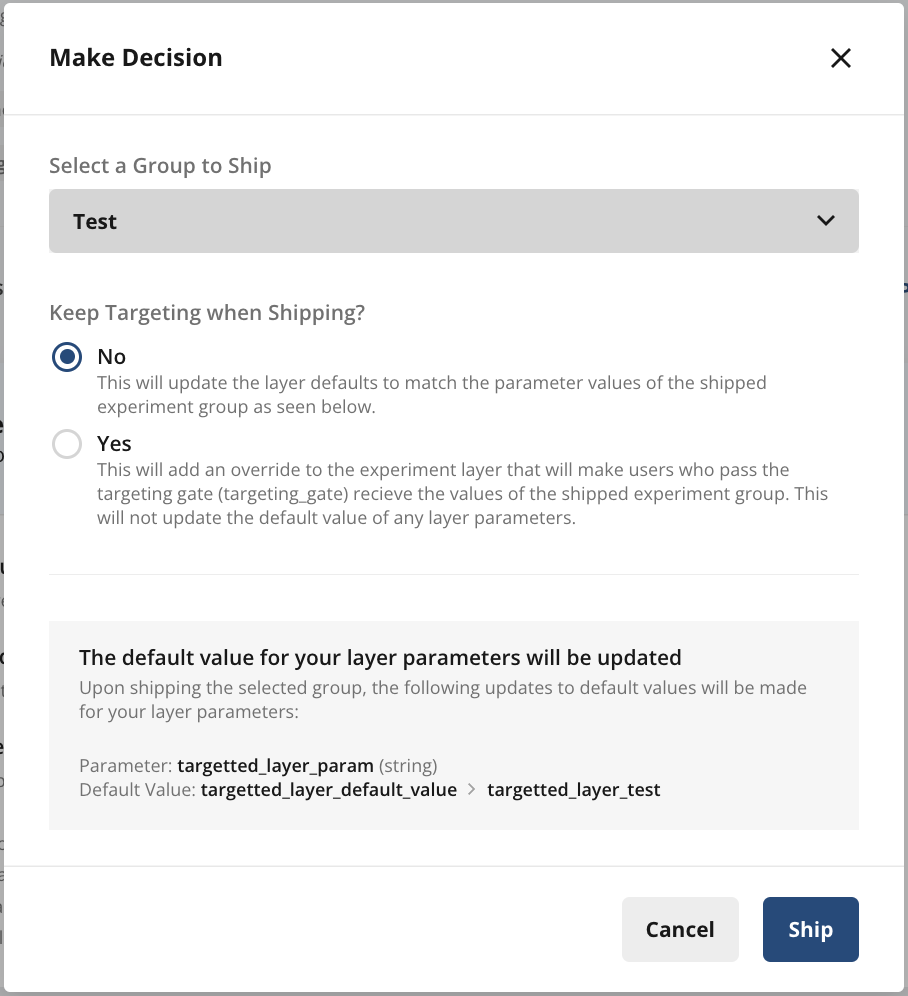 On the other hand, if you decide to continue targeting,
**targeted\_layer\_param** will now acquire an override so that:
* all users who **pass** the targeting gate will see the *overridden* value of the parameter
* all users who **fail** the targeting gate will see the *default* value of the parameter
In this case, the default value of **targeted\_layer\_param** in **Demo Layer** will not change. Also, any users who pass the targeting gate will not be eligible for future experiments run in this layer. For this reason, we do not encourage shipping experiments with targeting on, especially when the experiment is in a layer.
On the other hand, if you decide to continue targeting,
**targeted\_layer\_param** will now acquire an override so that:
* all users who **pass** the targeting gate will see the *overridden* value of the parameter
* all users who **fail** the targeting gate will see the *default* value of the parameter
In this case, the default value of **targeted\_layer\_param** in **Demo Layer** will not change. Also, any users who pass the targeting gate will not be eligible for future experiments run in this layer. For this reason, we do not encourage shipping experiments with targeting on, especially when the experiment is in a layer.
 ## Rolling Out an Experiment Group
Rolling out an experiment group is an option available when you have decided the winning variant, but want to avoid a sudden, large shift of traffic into the winning variant group. You can use automated rollouts to schedule gradual rollout phases, which will increase your shipped group size to the desired percentage by reallocating users from all other groups proportionally.
### Setting up Rollouts
To set up rollouts, open the make decision form and select the winning group. Here you will be able to either use automated rollouts, or ship with rollout.
## Rolling Out an Experiment Group
Rolling out an experiment group is an option available when you have decided the winning variant, but want to avoid a sudden, large shift of traffic into the winning variant group. You can use automated rollouts to schedule gradual rollout phases, which will increase your shipped group size to the desired percentage by reallocating users from all other groups proportionally.
### Setting up Rollouts
To set up rollouts, open the make decision form and select the winning group. Here you will be able to either use automated rollouts, or ship with rollout.
 The ship with rollout option allows you to immediately update the shipped group size. Manual rollouts will clear any automated rollout phases.
 Alternatively, you can set up automated rollouts, which will open the following dialog that you can populate with the rollout phases:
 From here, you can configure each phase of your Scheduled Rollout. To add phases to your rollout, click **Add Phase** and configure as many phases as you want.
Each scheduled rollout phase includes-
* Rollout date
* Rollout time\*
* Pass percentage
Rollout times are available in 15 minute increments. Additionally, each configured phase represents a discrete increase to the next rollout percentage, not a gradual rollout amortized over the course of the entire phase.
Upon saving, you will be able to see a preview of the rollout and commit the schedule:
From here, you can configure each phase of your Scheduled Rollout. To add phases to your rollout, click **Add Phase** and configure as many phases as you want.
Each scheduled rollout phase includes-
* Rollout date
* Rollout time\*
* Pass percentage
Rollout times are available in 15 minute increments. Additionally, each configured phase represents a discrete increase to the next rollout percentage, not a gradual rollout amortized over the course of the entire phase.
Upon saving, you will be able to see a preview of the rollout and commit the schedule:
 ### Resizing Logic
During each phase, the rollout group is resized to the desired percentage, and all other groups are scaled proportionally in the following way:
You have *n* groups with sizes:
G₁, G₂, ..., Gₙ
Their total sum is:
100 = G₁ + G₂ + ... + Gₙ.
Now, suppose you **set one group** (say the k-th group) to a **new size** Gₖ′. Let
Delta = Gₖ′ − Gₖ.
Because the **grand total** must remain 100, you need to **adjust the remaining groups** proportionally. Let
T = 100 - Gₖ
Then, for each group i ≠ k,
Gᵢ′ = Gᵢ − (Delta × Gᵢ / T).
In other words, each group other than k is decreased (or increased, if Delta \< 0) by its fraction of T.
### A few notes
1. Experiment results will be frozen to a snapshot of when the rollout decision is made.
2. Rolling out a group to 100% does not fully ship the experiment, meaning configurations such as experiment/layer allocation, targeting, overrides, and so on will not change. To fully ship the experiment go through the usual flow without specifying any rollouts.
3. Groups can be rolled out and back, but the rollout % cannot be lower than the group's original size.
This is currently a beta feature.
## Shipping with a Holdback
Shipping with holdback lets you release an experiment variant (the “shipped” group) to most of your users while keeping a percentage in the control group for ongoing comparisons. Here’s how it works:
1. Make a decision and select a group to ship: From the Make Decision dropdown, choose which variant you want to ship.
2. Turn on the Ship with holdback option and specify the percentage of users you want to remain in the control (holdback) group.
### Resizing Logic
During each phase, the rollout group is resized to the desired percentage, and all other groups are scaled proportionally in the following way:
You have *n* groups with sizes:
G₁, G₂, ..., Gₙ
Their total sum is:
100 = G₁ + G₂ + ... + Gₙ.
Now, suppose you **set one group** (say the k-th group) to a **new size** Gₖ′. Let
Delta = Gₖ′ − Gₖ.
Because the **grand total** must remain 100, you need to **adjust the remaining groups** proportionally. Let
T = 100 - Gₖ
Then, for each group i ≠ k,
Gᵢ′ = Gᵢ − (Delta × Gᵢ / T).
In other words, each group other than k is decreased (or increased, if Delta \< 0) by its fraction of T.
### A few notes
1. Experiment results will be frozen to a snapshot of when the rollout decision is made.
2. Rolling out a group to 100% does not fully ship the experiment, meaning configurations such as experiment/layer allocation, targeting, overrides, and so on will not change. To fully ship the experiment go through the usual flow without specifying any rollouts.
3. Groups can be rolled out and back, but the rollout % cannot be lower than the group's original size.
This is currently a beta feature.
## Shipping with a Holdback
Shipping with holdback lets you release an experiment variant (the “shipped” group) to most of your users while keeping a percentage in the control group for ongoing comparisons. Here’s how it works:
1. Make a decision and select a group to ship: From the Make Decision dropdown, choose which variant you want to ship.
2. Turn on the Ship with holdback option and specify the percentage of users you want to remain in the control (holdback) group.
 3. Allocation of users:
The control (holdback) group is set to your specified percentage.
The remaining users are assigned to the shipped experience.
4. Splitting the shipped group:
The shipped group is divided into two segments: Test and Launched.
The Test segment matches the same percentage allocation as the holdback group, allowing a direct head-to-head comparison with control.
The Launched segment no longer appears in pulse results, but continues to receive the shipped experience.
3. Allocation of users:
The control (holdback) group is set to your specified percentage.
The remaining users are assigned to the shipped experience.
4. Splitting the shipped group:
The shipped group is divided into two segments: Test and Launched.
The Test segment matches the same percentage allocation as the holdback group, allowing a direct head-to-head comparison with control.
The Launched segment no longer appears in pulse results, but continues to receive the shipped experience.
 5. Continue monitoring the pulse results evaluating the Test segment vs. Control (holdback)
Some users currently in control will move to the shipped group to achieve the desired allocation. However, any user who has previously been in a test or shipped group will not be reassigned to control. New users—those who have never been exposed to the experiment will be assigned based on the allocation percentages of each group.
By using shipping with holdback, you maintain a dedicated, stable control group alongside a representative test segment of the shipped experience, making it easy to measure ongoing performance and user behavior post-launch.
This is currently a beta feature.
5. Continue monitoring the pulse results evaluating the Test segment vs. Control (holdback)
Some users currently in control will move to the shipped group to achieve the desired allocation. However, any user who has previously been in a test or shipped group will not be reassigned to control. New users—those who have never been exposed to the experiment will be assigned based on the allocation percentages of each group.
By using shipping with holdback, you maintain a dedicated, stable control group alongside a representative test segment of the shipped experience, making it easy to measure ongoing performance and user behavior post-launch.
This is currently a beta feature.