> ## Documentation Index
> Fetch the complete documentation index at: https://statsig-4b2ff144-serverless-cloudflare.mintlify.site/llms.txt
> Use this file to discover all available pages before exploring further.
# Running an A/A Test
> Learn how to run A/A tests to validate your experimentation setup and ensure proper metrics configuration.
In this guide, you will create and implement an A/A test on your product in Statsig from end to end. This is commonly used to validate a new experimentation engine you may be integrating with.
For new users just getting started with Statsig, we often recommend running an A/A test to provide a “low-stakes” first test environment to ensure that you have your metrics set up correctly and are seeing exposures flowing through as expected before kicking off your first real A/B test.
By the end of this tutorial, you will have:
* Created a new **Feature Gate** in the Statsig console, set up as an "A/A test"
## Prerequisites
1. You already have a [Statsig account](https://console.statsig.com/sign_up)
2. You already [integrated the Statsig Client SDK](/sdks/quickstart) into an existing application
## Step 1: Create a feature gate in the console
The easiest way to run an A/A test in Statsig is by leveraging a [Feature Gate](/feature-flags/overview). You can also leverage an [Experiment](/guides/abn-tests) to run an A/A, but we chose to use a Feature Gate for this tutorial for simplicity.
Log into the Statsig console at [https://console.statsig.com/](https://console.statsig.com/) and navigate to **Feature Gates** in the left-hand navigation panel.
Click on the **Create** button and enter the name and (optional) description for your feature gate. We will call our feature gate “aatest\_example”. Click **Create**.
 In the Setup tab, define the rules for this feature gate. Tap **+ Add New Rule**. While you could run an A/A test on a specific user-group, platform, etc. the easiest setup is to simply divide all of your traffic 50/50 and deliver the same experience (your default product experience) to each group.
 To do this, under **Criteria** select **Everyone** (you may need to scroll up), name your rule, and then change the **Pass Percentage** to 50%. Click **Add Rule** and that’s it! Tap **Save Changes** in the upper right-hand corner.
 Your feature gate setup should now look as follows-
 Check that it is working as expected by typing in some dummy user IDs into the console- roughly 50% of the time your IDs should pass, and 50% of the time they should fail.

 ## Step 2: Check the feature gate in your code
Copy the code snippet in the upper right hand corner of your feature gate page under the **\< >** symbol and drop it into your application at the point you want to call the A/A check.
```jsx theme={null}
statsig.checkGate("aatest_example")
```
Now when a user renders this page in their client application, you will automatically start to see a live log stream in the Statsig console when you navigate to the **Diagnostics** tab for your feature gate.
## Step 2: Check the feature gate in your code
Copy the code snippet in the upper right hand corner of your feature gate page under the **\< >** symbol and drop it into your application at the point you want to call the A/A check.
```jsx theme={null}
statsig.checkGate("aatest_example")
```
Now when a user renders this page in their client application, you will automatically start to see a live log stream in the Statsig console when you navigate to the **Diagnostics** tab for your feature gate.
 ## Step 3: Review A/A test results
Within 24 hours of starting your experiment, you'll see the cumulative exposures in the **Pulse Results** tab of your feature gate.
## Step 3: Review A/A test results
Within 24 hours of starting your experiment, you'll see the cumulative exposures in the **Pulse Results** tab of your feature gate.
 This will break down your logged exposures (as well as the distribution of the logged exposures). If something looks off, check the **Diagnostics** tab for more granular, day-by-day exposure breakdowns at both the Checks and User level.
In the **Metric Lifts** panel, you can see the full picture of how all your tagged metrics are performing.
This will break down your logged exposures (as well as the distribution of the logged exposures). If something looks off, check the **Diagnostics** tab for more granular, day-by-day exposure breakdowns at both the Checks and User level.
In the **Metric Lifts** panel, you can see the full picture of how all your tagged metrics are performing.
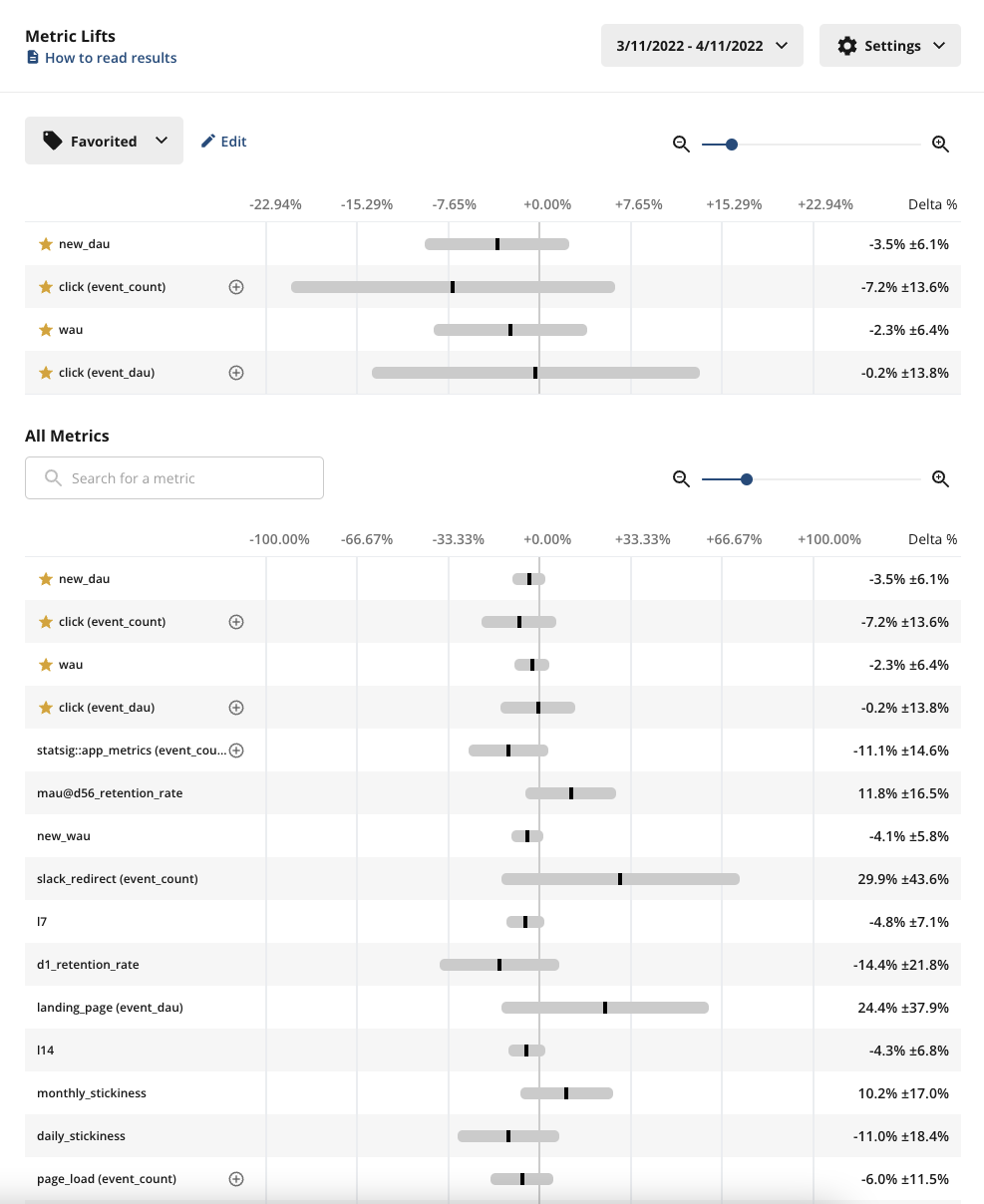 What should you expect to see?
* **Exposures**- make sure you’re seeing exposures flowing through as expected from your product. If you’re not seeing exposures, use the **Diagnostics** tab and the **Exposure Stream** to debug
* **Pulse results**- roughly 5% of your metrics in Pulse should be showing a statistically significant change due to the 95% confidence interval of Statsig’s stats engine
We recommend running your A/A long enough to reach most of your weekly active users, or at least a week.
## Simulated A/A Tests
We’ve made running A/A tests at scale easy by setting up simulated A/A tests that run every day in the background, for every company on the platform. An A/A test is like an A/B test - but both groups get the same experience. A/A tests help build trust in your experimentation platform (and your metrics!)
A/A tests can be Online or Offline. An [Online A/A test](/guides/aa-test) is run on real users. An engineer instruments your app with the Statsig SDK to check for experiment assignment. Assignment is logged, but there's no difference in experience to the user.
Since there is no effect, you expect to only see statistical noise. When using 95% confidence intervals, only \~1 in 20 metrics will show a stat-sig difference between control and test.
### Offline A/A tests
A single request runs on one unit type, and an offline A/A test works by
1. Querying a representative sample of your data
2. Randomly assigning subjects to Test or Control
3. Computing relevant metrics for Test vs Control and running them through the stats engine
4. You're looking for the % of false positives. If your p-value cutoff is 0.05 (typical), you'd expect a \~5% false positive rate.
You can download the running history of your simulated A/A test performance via the “Tools” menu in your Statsig Console. We run 100 tests per request.
### File Description
| Column Name | Description |
| ------------------------------------ | ------------------------------------------------------------------- |
| metric\_name | Name of the Metric |
| metric\_type | Type of Metric |
| unit\_type | The unit used to randomize (e.g. userID) |
| n\_tests | The number of tests run |
| pct\_ss\_95\_pct\_confidence | The percentage of tests that have a stat-sig result for this metric |
| avg\_units\_per\_test | The number of units (often users) sampled into the A/A test |
| avg\_participating\_units\_per\_test | The number of units in the test with a value for this metric |
What should you expect to see?
* **Exposures**- make sure you’re seeing exposures flowing through as expected from your product. If you’re not seeing exposures, use the **Diagnostics** tab and the **Exposure Stream** to debug
* **Pulse results**- roughly 5% of your metrics in Pulse should be showing a statistically significant change due to the 95% confidence interval of Statsig’s stats engine
We recommend running your A/A long enough to reach most of your weekly active users, or at least a week.
## Simulated A/A Tests
We’ve made running A/A tests at scale easy by setting up simulated A/A tests that run every day in the background, for every company on the platform. An A/A test is like an A/B test - but both groups get the same experience. A/A tests help build trust in your experimentation platform (and your metrics!)
A/A tests can be Online or Offline. An [Online A/A test](/guides/aa-test) is run on real users. An engineer instruments your app with the Statsig SDK to check for experiment assignment. Assignment is logged, but there's no difference in experience to the user.
Since there is no effect, you expect to only see statistical noise. When using 95% confidence intervals, only \~1 in 20 metrics will show a stat-sig difference between control and test.
### Offline A/A tests
A single request runs on one unit type, and an offline A/A test works by
1. Querying a representative sample of your data
2. Randomly assigning subjects to Test or Control
3. Computing relevant metrics for Test vs Control and running them through the stats engine
4. You're looking for the % of false positives. If your p-value cutoff is 0.05 (typical), you'd expect a \~5% false positive rate.
You can download the running history of your simulated A/A test performance via the “Tools” menu in your Statsig Console. We run 100 tests per request.
### File Description
| Column Name | Description |
| ------------------------------------ | ------------------------------------------------------------------- |
| metric\_name | Name of the Metric |
| metric\_type | Type of Metric |
| unit\_type | The unit used to randomize (e.g. userID) |
| n\_tests | The number of tests run |
| pct\_ss\_95\_pct\_confidence | The percentage of tests that have a stat-sig result for this metric |
| avg\_units\_per\_test | The number of units (often users) sampled into the A/A test |
| avg\_participating\_units\_per\_test | The number of units in the test with a value for this metric |
