> ## Documentation Index
> Fetch the complete documentation index at: https://statsig-4b2ff144-serverless-cloudflare.mintlify.site/llms.txt
> Use this file to discover all available pages before exploring further.
# Statsig ID Resolver
## What is Statsig ID Resolver?
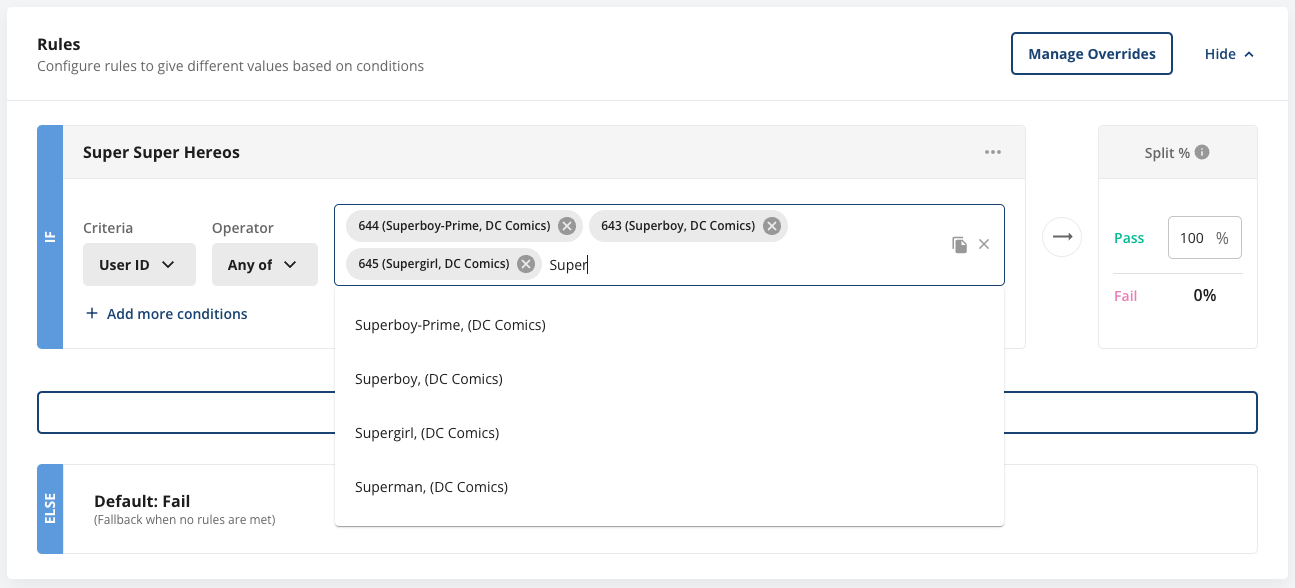
Statsig ID Resolver is an integration set up at the project level that brings your ID names into console. IDs are used everywhere within Console, but unless you are an ID Wizard it is hard to tell at a glance who or what an ID belongs to. Take Feature Gate rules for example:
 Each of the IDs shown represent a superhero with a name and other identifying information. After setting up ID Resolver you will be able to see an ID’s “name” next to each ID. In this example, the ID’s name is the superhero’s name followed by their publisher. You have the power to define “name” as whatever string is most useful for your project.
 Additionally, after setting up ID Resolver Autocomplete you can begin typing in an ID’s name and have it auto-resolve to the correct ID
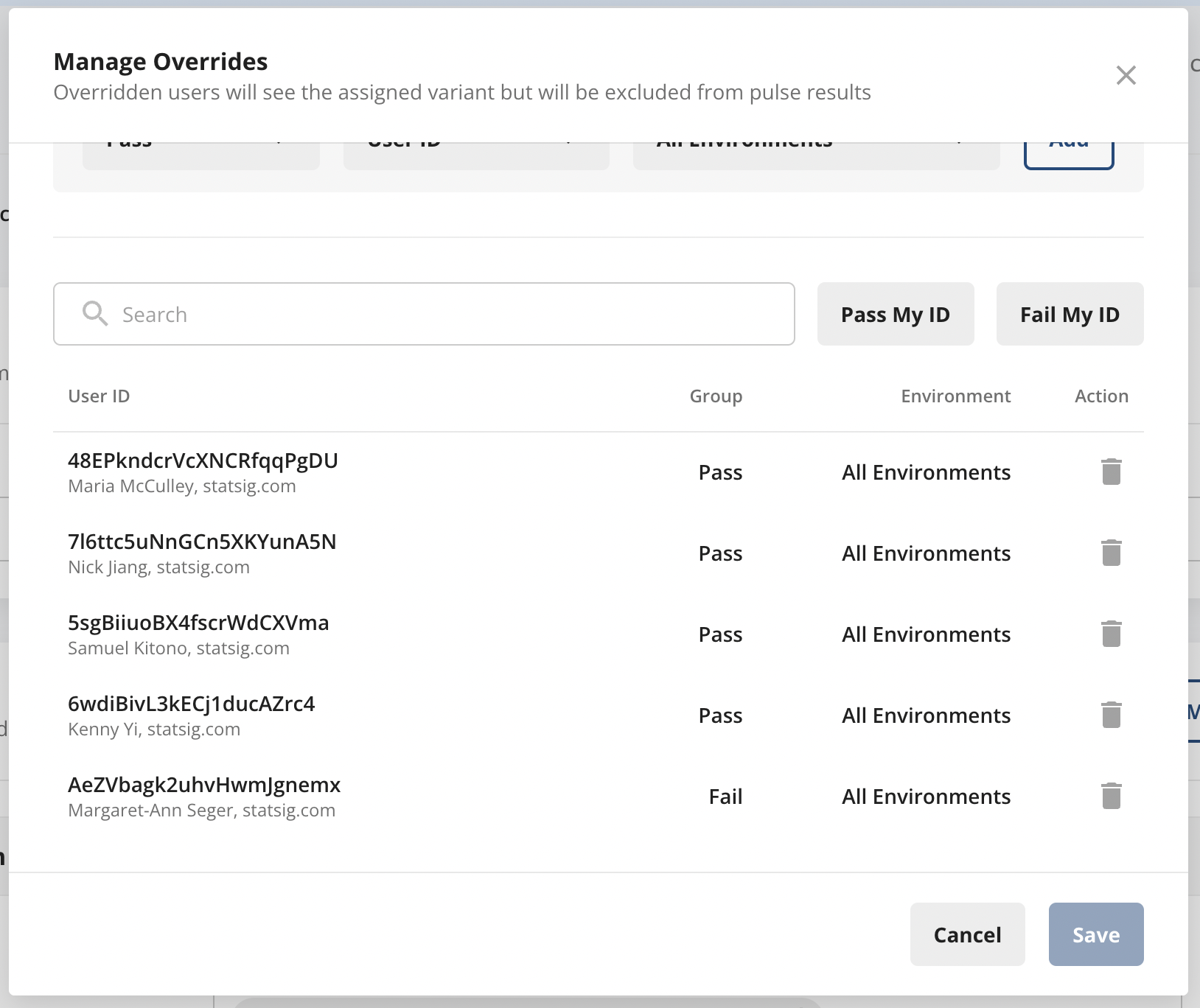
 ID Resolver can be used wherever you enter IDs, for example in Feature Gate rules, Overrides, Users tab, and Segment ID lists
 ## Step 1 - Create your ID Resolver Webhook
You will need to create and host your own webhook for this integration. This webhook should take in an `id` and a possibly null `unit_type` and return `name`. `unit_type` will come in the form of userID, stableID, or one of your custom ID types. The length of `name` should be under 100 characters.
```js theme={null}
const inputId = req.body.id as string | null;
const unitType = req.body.unit_type as string | null;
if (!inputId) {
res.status(200).json({
success: true,
data: {
name: "",
},
});
}
const result = IDResolverDatabase.find((d) => d.id === inputId);
res.status(200).json({
success: true,
data: {
name: result ? result.name + ", " + result.Publisher : "",
},
});
```
## Step 2 - Create your ID Resolver Autocomplete Webhook
This webhook should take in a `name` (the current partially typed name) and a possibly null `unit_type` and return the array `results` which contains potential matches in the shape of `{name: string, id: string}`. It should return at most 100 results, and the length per item should be under 100 characters.
```js theme={null}
const partialName = req.body.name as string | null;
const unitType = req.body.unit_type as string | null;
if (!partialName) {
res.status(200).json({
success: true,
data: {
results: [],
},
});
}
const results = IDResolverDatabase.filter((d) =>
d.name.match(new RegExp(`^${partialName}`))
).limit(100);
res.status(200).json({
success: true,
data: {
results: results.map((result) => {
return {
name: result.name + ", (" + result.Publisher + ")",
id: result.id,
};
}),
},
});
```
## Step 3 - Integrate your webhooks with Statsig
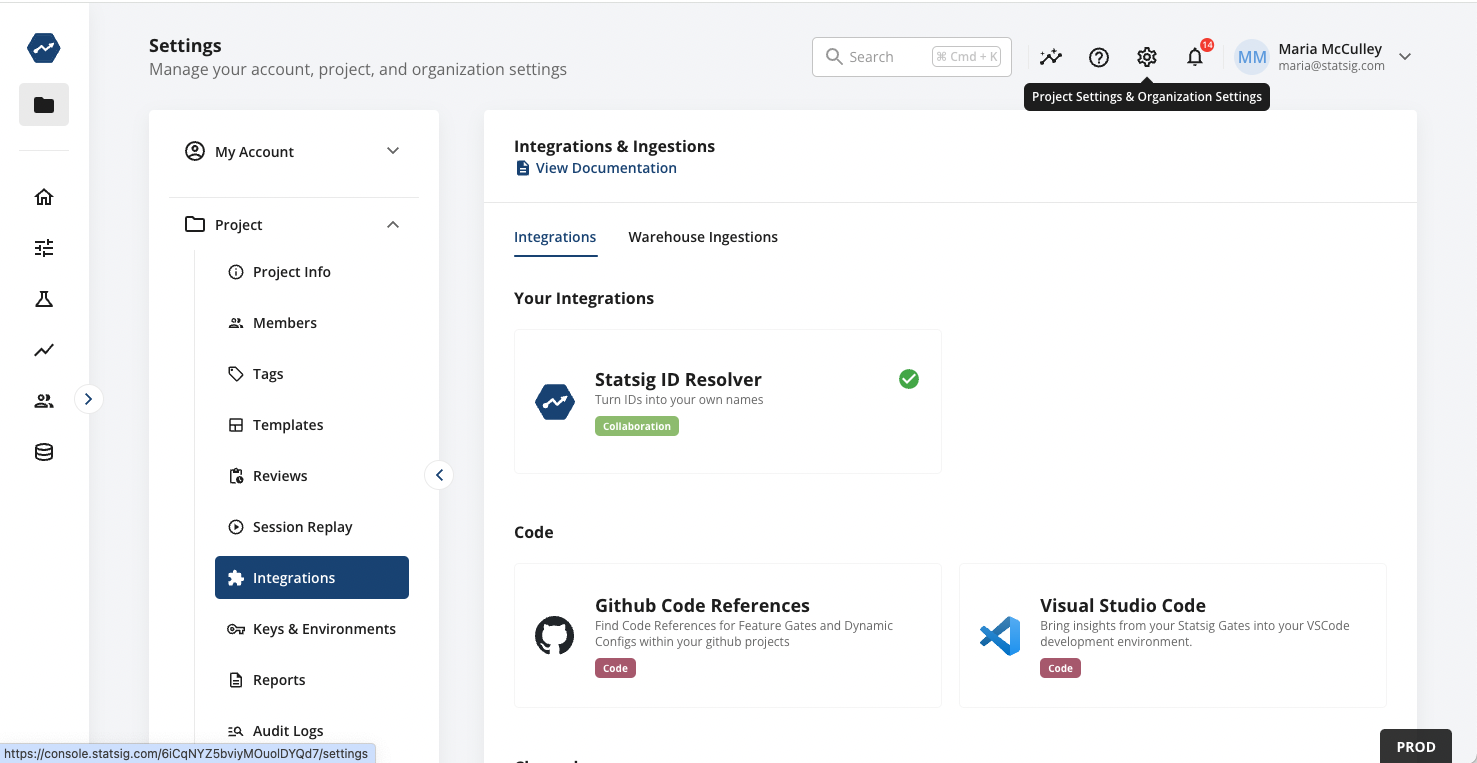
You can find Statsig ID Resolver under the Integrations tab within Project Settings
## Step 1 - Create your ID Resolver Webhook
You will need to create and host your own webhook for this integration. This webhook should take in an `id` and a possibly null `unit_type` and return `name`. `unit_type` will come in the form of userID, stableID, or one of your custom ID types. The length of `name` should be under 100 characters.
```js theme={null}
const inputId = req.body.id as string | null;
const unitType = req.body.unit_type as string | null;
if (!inputId) {
res.status(200).json({
success: true,
data: {
name: "",
},
});
}
const result = IDResolverDatabase.find((d) => d.id === inputId);
res.status(200).json({
success: true,
data: {
name: result ? result.name + ", " + result.Publisher : "",
},
});
```
## Step 2 - Create your ID Resolver Autocomplete Webhook
This webhook should take in a `name` (the current partially typed name) and a possibly null `unit_type` and return the array `results` which contains potential matches in the shape of `{name: string, id: string}`. It should return at most 100 results, and the length per item should be under 100 characters.
```js theme={null}
const partialName = req.body.name as string | null;
const unitType = req.body.unit_type as string | null;
if (!partialName) {
res.status(200).json({
success: true,
data: {
results: [],
},
});
}
const results = IDResolverDatabase.filter((d) =>
d.name.match(new RegExp(`^${partialName}`))
).limit(100);
res.status(200).json({
success: true,
data: {
results: results.map((result) => {
return {
name: result.name + ", (" + result.Publisher + ")",
id: result.id,
};
}),
},
});
```
## Step 3 - Integrate your webhooks with Statsig
You can find Statsig ID Resolver under the Integrations tab within Project Settings
 And that's it! You're off to the races with easier-to-recognize IDs throughout the Console.