> ## Documentation Index
> Fetch the complete documentation index at: https://statsig-4b2ff144-serverless-cloudflare.mintlify.site/llms.txt
> Use this file to discover all available pages before exploring further.
# Segment
Enabling the Segment integration for Statsig will allow Statsig to pull in your Segment events. This allows you to run your experiment analysis on Statsig with all of your existing events from Segment without requiring any additional logging.
When Statsig receives events from Segment, these will be visible and aggregated in the [Metrics](/metrics) tab in the Statsig console. These events will automatically be included in your [Pulse](/pulse/read-pulse) results for A/B tests with Statsig's feature gates as well as all your [Experiment](/experiments-plus/monitor) results.
### Supported Segment Event Types
* [Track](https://segment.com/docs/connections/spec/track/)
* [Page](https://segment.com/docs/connections/spec/page/)
* [Group](https://segment.com/docs/connections/spec/group/)
* [Screen](https://segment.com/docs/connections/spec/screen/)
* [Identify\*](https://segment.com/docs/connections/spec/identify/)
Identify calls are only supported for syncing Segment Engage Audiences with Statsig Segments
### Benefits of using the Segment integration
Using the Segment integration has several benefits over other methods of event ingestion:
* Customers who are ingesting customer data with Segment will be able to quickly populate Statsig with metrics and can typically get up and running within a day
* Customers will only have to use Statsig's assignment SDKs (gate/experiment allocation), simplifying your code and engineer workflows
* Additional logging can be done via the [event logging SDKs](/guides/logging-events#logging-events-via-sdks) but will and additional code orchestration and a collection window
* With [event filtering](/integrations/event_filtering) you can control which events are ingested and make billing more predictable
* If you have [Segment Replay](https://segment.com/docs/guides/what-is-replay/), you can send Statsig your historical events for analysis
## Configuring Inbound Events into Statsig
To send events collected from Segment into Statsig, you must configure the Statsig Destination within the your Segment account:
### Using OAuth
The easiest way to connect Statsig to Segment is via OAuth.
1. To get started, within the Statsig Console, go to **project settings → integrations → Segment → Enable**
2. Click “Configure Segment OAuth”
 3. Select the workspace and source that will send data to Statsig. Click “Allow”:
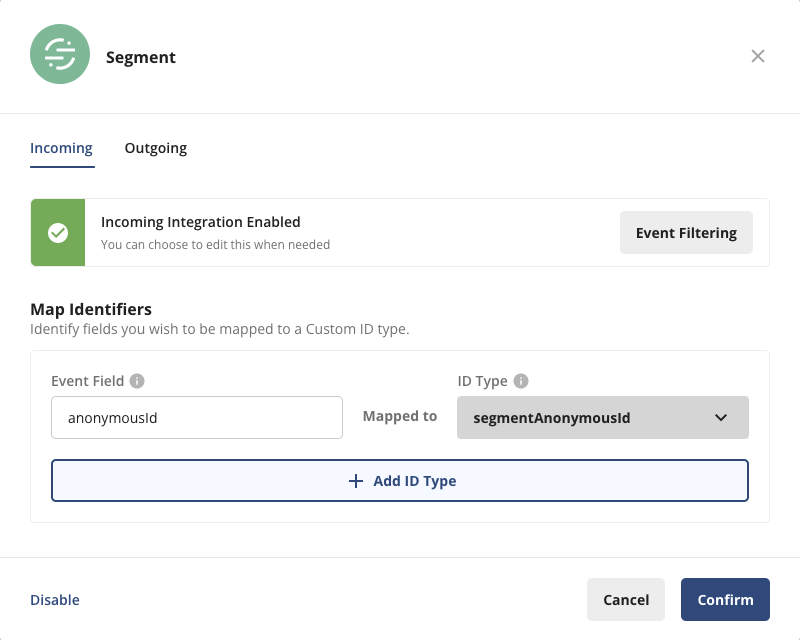
 4. After the integration has been enabled, you can configure event filtering and map additional identifiers. This is useful for mapping device level identifiers as well as `anonymousIds` generated from Segment.
We recommend creating a custom ID called `segmentAnonymousId` and mapping the `anonymousId` from Segment to it.
4. After the integration has been enabled, you can configure event filtering and map additional identifiers. This is useful for mapping device level identifiers as well as `anonymousIds` generated from Segment.
We recommend creating a custom ID called `segmentAnonymousId` and mapping the `anonymousId` from Segment to it.
 ### Manual Configuration
If you are unable to connect to Segment via OAuth, you can still manually connect Statsig to Segment by configuring
1. Within the [Segment App](https://app.segment.com), navigate to your Destinations, and select "**Add Destination**"
2. Search for “**Statsig**” and select the destination
### Manual Configuration
If you are unable to connect to Segment via OAuth, you can still manually connect Statsig to Segment by configuring
1. Within the [Segment App](https://app.segment.com), navigate to your Destinations, and select "**Add Destination**"
2. Search for “**Statsig**” and select the destination
 3. Select "Statsig" from the list of available integrations, and then select **sources** that will send data to Statsig.
 4. You must provide a Statsig Server SDK key. You can copy an existing server key or create a new one from the [Statsig console settings](https://console.statsig.com/api_keys).
* Create or copy a server SDK key
4. You must provide a Statsig Server SDK key. You can copy an existing server key or create a new one from the [Statsig console settings](https://console.statsig.com/api_keys).
* Create or copy a server SDK key

 * Put your Server Secret Key in the “API Key” field in the Statsig Destination
 5. In order to set up mappings you must enable the Segment Integration on the Statsig . Go to the Statsig Console > Project Settings > Integrations Tab > Segment > Click **Enable**:
 * After the integration has been enabled, you can configure event filtering and map additional identifiers. This is useful for mapping device level identifiers as well as `anonymousIds` generated from Segment.
6. Now we can verify that events are being properly sent to Statsig using the [Segment Event Tester](https://segment.com/docs/connections/test-connections/).
* In the event tester, send a test event that can verify any filtering and/or mapping you have set up:
* After the integration has been enabled, you can configure event filtering and map additional identifiers. This is useful for mapping device level identifiers as well as `anonymousIds` generated from Segment.
6. Now we can verify that events are being properly sent to Statsig using the [Segment Event Tester](https://segment.com/docs/connections/test-connections/).
* In the event tester, send a test event that can verify any filtering and/or mapping you have set up:
 * In the your [Statsig Console Events Explorer](https://console.statsig.com/metrics/events), click on the test event in the log stream and verify the event:
 * Note: In this example the `anonymousId` is mapped to Statsig’s `segmentAnonymousId` based on the above mapping. The User ID is inferred from the Segment `userID` field
7. As your Segment events flow into Statsig, you'll see a live **Log Stream** in the [Metrics](/metrics) tab in the Statsig console. You can click one of these events to see the details that are logged as part of the event.
* Note: In this example the `anonymousId` is mapped to Statsig’s `segmentAnonymousId` based on the above mapping. The User ID is inferred from the Segment `userID` field
7. As your Segment events flow into Statsig, you'll see a live **Log Stream** in the [Metrics](/metrics) tab in the Statsig console. You can click one of these events to see the details that are logged as part of the event.
 ## Working with Users
Statsig will join incoming user identifiers to whichever [unit of randomization](/experiments-plus#choosing-the-right-randomization-unit) you choose. This allows you to be flexible with your experimentation and enables testing on known (userID) and unknown (anonymousID) traffic as well as any custom identifiers your team may have (deviceID, companyID, vehicleID, etc).
### User IDs and Custom IDs
Statsig automatically detects the `event` and `userId` fields that are logged through your Segment events (see [`track`](https://segment.com/docs/connections/spec/track/) for an example). If you're running an experiment with the userId as your unit type, this `userID` should match the user identifier that you log with the Statsig SDK.
If you're using a [custom ID](/guides/experiment-on-custom-id-types) as the unit type for your experiment, you can provide this identifier using the key `statsigCustomIDs` as part of the Segment `properties` field as shown below.
```bash title="JSON Body" theme={null}
{
...
properties: {
"statsigCustomIDs": [ "companyID", ""]
}
}
```
The `statsigCustomIDs` field in properties should be an array, where the even index is the name of the user ID type and the odd index is the value of the previous element in the array. Assuming you've created this custom ID type on Statsig (under **ID Type Settings** in your [Project Settings](https://console.statsig.com/settings)), Statsig will automatically recognize these custom identifiers to compute your experiment results appropriately.
### Anonymous Users
#### Mapping anonymous users
The Segment integration also allows the mapping of top level fields to custom IDs you define in Statsig. To do this, visit the Segment panel on the Statsig Integrations page and look for the "Map Identifier" section. Here you can choose fields you would like mapped to a [Custom ID](/guides/experiment-on-custom-id-types).
This is particularly useful for working with the [Segment anonymous ID](https://segment.com/docs/connections/sources/catalog/libraries/website/javascript/identity/#anonymous-ids), which is passed as an event field `anonymousId`. By defining a custom ID called `segmentAnonymousId`, Statsig can easily map your anonymous Segment traffic to your metric data.
:warning: **Warning:** values passed in `properties.statsigCustomIDs` will take precedence over mapped identifiers below:
#### Experimenting on anonymous traffic
For example, if you're running experiments on anonymous users, you can use Segment's `anonymousId` as the unit of randomization. First, you will want to [add a new customer identifier to Statsig](/guides/experiment-on-custom-id-types#step-1---add-companyid-as-a-new-id-type-in-your-project-settings). In the above example, we call our new custom ID `segmentAnonymousId`. Then, when [initializing](/client/javascript-sdk) the Statsig SDK, if you have access to the Segment `anonymousId` you will want to pass it to Statsig as a custom ID. For example, your Statsig initialization may look like this:
```jsx theme={null}
import { StatsigClient } from '@statsig/js-client';
await Statsig.initialize(
"client-sdk-key",
);
const client = new StatsigClient(sdkKey,
{
userID: "some_user_id",
customIDs: {
segmentAnonymousId: analytics.user().anonymousId()
}
},
{ environment: { tier: "production" } }
);
```
You can access Segment's `anonymousId` using `analytics.user().anonymousId()` as [outlined in the Segment docs here](https://segment.com/docs/connections/sources/catalog/libraries/website/javascript/identity/).
It's important to note, that the Segment SDK may initialize after Statsig SDK, and the `anonymousId` may not be available in that scenario. It's important to check this in your specific implementation. If you're using vanilla javascript, you may want to wait for the `anonymousId` from the Segment SDK after initialization and call the `updateUser()` method on the Statsig SDK to update this ID.
#### Example Mapping Flow
Refer to the following diagram to help orient you to mapping `anonymousIds` in Segment to a custom ID representing anonymous users in Statsig:
## Working with Users
Statsig will join incoming user identifiers to whichever [unit of randomization](/experiments-plus#choosing-the-right-randomization-unit) you choose. This allows you to be flexible with your experimentation and enables testing on known (userID) and unknown (anonymousID) traffic as well as any custom identifiers your team may have (deviceID, companyID, vehicleID, etc).
### User IDs and Custom IDs
Statsig automatically detects the `event` and `userId` fields that are logged through your Segment events (see [`track`](https://segment.com/docs/connections/spec/track/) for an example). If you're running an experiment with the userId as your unit type, this `userID` should match the user identifier that you log with the Statsig SDK.
If you're using a [custom ID](/guides/experiment-on-custom-id-types) as the unit type for your experiment, you can provide this identifier using the key `statsigCustomIDs` as part of the Segment `properties` field as shown below.
```bash title="JSON Body" theme={null}
{
...
properties: {
"statsigCustomIDs": [ "companyID", ""]
}
}
```
The `statsigCustomIDs` field in properties should be an array, where the even index is the name of the user ID type and the odd index is the value of the previous element in the array. Assuming you've created this custom ID type on Statsig (under **ID Type Settings** in your [Project Settings](https://console.statsig.com/settings)), Statsig will automatically recognize these custom identifiers to compute your experiment results appropriately.
### Anonymous Users
#### Mapping anonymous users
The Segment integration also allows the mapping of top level fields to custom IDs you define in Statsig. To do this, visit the Segment panel on the Statsig Integrations page and look for the "Map Identifier" section. Here you can choose fields you would like mapped to a [Custom ID](/guides/experiment-on-custom-id-types).
This is particularly useful for working with the [Segment anonymous ID](https://segment.com/docs/connections/sources/catalog/libraries/website/javascript/identity/#anonymous-ids), which is passed as an event field `anonymousId`. By defining a custom ID called `segmentAnonymousId`, Statsig can easily map your anonymous Segment traffic to your metric data.
:warning: **Warning:** values passed in `properties.statsigCustomIDs` will take precedence over mapped identifiers below:
#### Experimenting on anonymous traffic
For example, if you're running experiments on anonymous users, you can use Segment's `anonymousId` as the unit of randomization. First, you will want to [add a new customer identifier to Statsig](/guides/experiment-on-custom-id-types#step-1---add-companyid-as-a-new-id-type-in-your-project-settings). In the above example, we call our new custom ID `segmentAnonymousId`. Then, when [initializing](/client/javascript-sdk) the Statsig SDK, if you have access to the Segment `anonymousId` you will want to pass it to Statsig as a custom ID. For example, your Statsig initialization may look like this:
```jsx theme={null}
import { StatsigClient } from '@statsig/js-client';
await Statsig.initialize(
"client-sdk-key",
);
const client = new StatsigClient(sdkKey,
{
userID: "some_user_id",
customIDs: {
segmentAnonymousId: analytics.user().anonymousId()
}
},
{ environment: { tier: "production" } }
);
```
You can access Segment's `anonymousId` using `analytics.user().anonymousId()` as [outlined in the Segment docs here](https://segment.com/docs/connections/sources/catalog/libraries/website/javascript/identity/).
It's important to note, that the Segment SDK may initialize after Statsig SDK, and the `anonymousId` may not be available in that scenario. It's important to check this in your specific implementation. If you're using vanilla javascript, you may want to wait for the `anonymousId` from the Segment SDK after initialization and call the `updateUser()` method on the Statsig SDK to update this ID.
#### Example Mapping Flow
Refer to the following diagram to help orient you to mapping `anonymousIds` in Segment to a custom ID representing anonymous users in Statsig:
 1. Initialize the Statsig SDK with your [Statsig User](/concepts/user) which will contain an optional `userID` value and a `customID` that you've created in the Statsig UI - `segmentAnonymousId` in this example.
2. As you orchestrate features/experiments, Statsig will associate this user to a variant using the unit of randomization chosen. For anonymous users, we'll use `segmentAnonymousId`.
3. Your existing Segment implementation tracks user traffic and associates anonymous users to the top-level field `anonymousId`.
4. This `anonymousId` is mapped in Statsig (to `segmentAnonymousId`), properly associating the identifier used in experiment exposures to the same identifier used to track user actions.
### Syncing Statsig Segment ID Lists with Segment Engage Audiences
By using [Segment Engage Audiences](https://segment.com/docs/engage/audiences/) you are able to maintain a list of users that can be used for targeting using [Statsig Feature Gates](/feature-flags/overview). To configure this:
1. Create a [Statsig ID List Segment](/segments/create-new) on the Statsig Console.
2. Follow the [Segment guide for Audiences](https://segment.com/docs/engage/audiences/) to create a new Audience and choose `Statsig` as a Destination. The `audience_key` must match the ID of the `Statsig ID List Segment` created.
Once these steps have been completed, your Segment Audience will be synced, and you will be able to target those users for features you develop or experiments you run.
### Custom Properties
Passing [custom properties to a Statsig User](/concepts/user#user-attributes) (see `custom` field) enables targeting on specific cohorts of your users in feature gates and experimentation.
Providing custom user properties also allows you to drill down your results to specific populations (ex: android/iOS, isVIP, etc) when [reading pulse results](/pulse/custom-queries#running-a-custom-query).
If you're using custom fields to [target users](/feature-flags/conditions#custom) in your feature gates, you can provide these properties through Segment using the key `statsigCustom` as part of the Segment `properties`
field, as an array of key value pairs: `[key1, value1, key2, value2, ...]`. An example is shown below:
```bash title="JSON Body" theme={null}
{
...
properties: {
"statsigCustom": [ "isVIP", "true", "marketing_campaign", "abx343", ...]
}
}
```
## Configuring Outbound Events to Segment
To export your Statsig events to Segment,
1. In your Segment app, add a new source → search for Statsig → click **Next**
1. Initialize the Statsig SDK with your [Statsig User](/concepts/user) which will contain an optional `userID` value and a `customID` that you've created in the Statsig UI - `segmentAnonymousId` in this example.
2. As you orchestrate features/experiments, Statsig will associate this user to a variant using the unit of randomization chosen. For anonymous users, we'll use `segmentAnonymousId`.
3. Your existing Segment implementation tracks user traffic and associates anonymous users to the top-level field `anonymousId`.
4. This `anonymousId` is mapped in Statsig (to `segmentAnonymousId`), properly associating the identifier used in experiment exposures to the same identifier used to track user actions.
### Syncing Statsig Segment ID Lists with Segment Engage Audiences
By using [Segment Engage Audiences](https://segment.com/docs/engage/audiences/) you are able to maintain a list of users that can be used for targeting using [Statsig Feature Gates](/feature-flags/overview). To configure this:
1. Create a [Statsig ID List Segment](/segments/create-new) on the Statsig Console.
2. Follow the [Segment guide for Audiences](https://segment.com/docs/engage/audiences/) to create a new Audience and choose `Statsig` as a Destination. The `audience_key` must match the ID of the `Statsig ID List Segment` created.
Once these steps have been completed, your Segment Audience will be synced, and you will be able to target those users for features you develop or experiments you run.
### Custom Properties
Passing [custom properties to a Statsig User](/concepts/user#user-attributes) (see `custom` field) enables targeting on specific cohorts of your users in feature gates and experimentation.
Providing custom user properties also allows you to drill down your results to specific populations (ex: android/iOS, isVIP, etc) when [reading pulse results](/pulse/custom-queries#running-a-custom-query).
If you're using custom fields to [target users](/feature-flags/conditions#custom) in your feature gates, you can provide these properties through Segment using the key `statsigCustom` as part of the Segment `properties`
field, as an array of key value pairs: `[key1, value1, key2, value2, ...]`. An example is shown below:
```bash title="JSON Body" theme={null}
{
...
properties: {
"statsigCustom": [ "isVIP", "true", "marketing_campaign", "abx343", ...]
}
}
```
## Configuring Outbound Events to Segment
To export your Statsig events to Segment,
1. In your Segment app, add a new source → search for Statsig → click **Next**
 2. Name your source → Create Source → click **Done**:
 3. Locate your **Write Key** and copy it.
4. Log into the Statsig console and navigate to the [**Integrations**](https://console.statsig.com/integrations) page.
5. Click on the **Segment** card and switch to the **Outbound** tab, paste the **Write Key** into the **API Key** text box shown below, and click **Enable**.
3. Locate your **Write Key** and copy it.
4. Log into the Statsig console and navigate to the [**Integrations**](https://console.statsig.com/integrations) page.
5. Click on the **Segment** card and switch to the **Outbound** tab, paste the **Write Key** into the **API Key** text box shown below, and click **Enable**.
 ### Outbound event schema
Statsig exports log events and exposure events to segment as `track` events:
```
{
type: 'track',
userId: event.userID,
timestamp: Number(event.timestamp),
event: event.eventName,
context: {
user: event.user,
value: event.value,
metadata: event.metadata,
library: {
name: 'statsig',
version: '1.0',
},
stableID: event.statsigMetadata.stableID // stableID, if you are relying on that for anonymous users
},
properties: {
value: event.value,
metadata: event.metadata,
},
};
}
```
Config Change events follow this schema:
```
{
userId: statsigUserID,
timestamp: Date.now(),
event: 'statsig::config_change',
context: {
library: {
name: 'statsig',
version: '1.0',
},
},
properties: {
author: author,
configName: configName,
description: changeDescription,
environment: environment,
},
},
```
## Environments
#### Environments
By default, all events are treated as "production" events, but you can also differentiate your event traffic by specifying the environment that the events are coming from.
This allows you to avoid non-production data making it into your production metrics.
If you would like to include the environment tier, you can add it to the properties object of your event.
The required format is below:
```json theme={null}
{
...
"properties": {
"statsigEnvironment": {
"tier": "staging"
}
}
}
```
To learn more about environments see [Using Environment](/guides/using-environments).
## Working with Segment Metrics in the Statsig UI
Segment events are piped into Statsig and are accessible in the metrics console like any other event. Furthermore, these metrics will be accessible to use as monitoring metrics in your feature gates and experiments so you can utilize your existing
metric collection via Segment with Statsig's experimentation platform.
Segment events are prepended with `segment::` so they can be easily distinguished from other sources
### Outbound event schema
Statsig exports log events and exposure events to segment as `track` events:
```
{
type: 'track',
userId: event.userID,
timestamp: Number(event.timestamp),
event: event.eventName,
context: {
user: event.user,
value: event.value,
metadata: event.metadata,
library: {
name: 'statsig',
version: '1.0',
},
stableID: event.statsigMetadata.stableID // stableID, if you are relying on that for anonymous users
},
properties: {
value: event.value,
metadata: event.metadata,
},
};
}
```
Config Change events follow this schema:
```
{
userId: statsigUserID,
timestamp: Date.now(),
event: 'statsig::config_change',
context: {
library: {
name: 'statsig',
version: '1.0',
},
},
properties: {
author: author,
configName: configName,
description: changeDescription,
environment: environment,
},
},
```
## Environments
#### Environments
By default, all events are treated as "production" events, but you can also differentiate your event traffic by specifying the environment that the events are coming from.
This allows you to avoid non-production data making it into your production metrics.
If you would like to include the environment tier, you can add it to the properties object of your event.
The required format is below:
```json theme={null}
{
...
"properties": {
"statsigEnvironment": {
"tier": "staging"
}
}
}
```
To learn more about environments see [Using Environment](/guides/using-environments).
## Working with Segment Metrics in the Statsig UI
Segment events are piped into Statsig and are accessible in the metrics console like any other event. Furthermore, these metrics will be accessible to use as monitoring metrics in your feature gates and experiments so you can utilize your existing
metric collection via Segment with Statsig's experimentation platform.
Segment events are prepended with `segment::` so they can be easily distinguished from other sources
 These metrics will be reported in pulse results among other monitoring metrics:
 ## Filtering Events
You can customize which events should be sent and received via Segment using [Event Filtering](/integrations/event_filtering)
## Filtering Events
You can customize which events should be sent and received via Segment using [Event Filtering](/integrations/event_filtering)