> ## Documentation Index
> Fetch the complete documentation index at: https://statsig-4b2ff144-serverless-cloudflare.mintlify.site/llms.txt
> Use this file to discover all available pages before exploring further.
# Slack Notifications
> The Statsig Slack integration lets you receive updates where your team already works. You can connect Slack to get **project-level**, **team-level**, or **personal notifications**.
Depending on your organization’s Slack settings, you may need help from a Slack Admin to complete setup.
***
## Setting Up Slack
**Step 1:** From your Statsig Console, go to **Statsig Settings** -> **Integrations**.
**Step 2:** Select Slack and click **+ Add Connection**. Follow the instructions to connect to your Slack workspace.
***
## Team Notifications
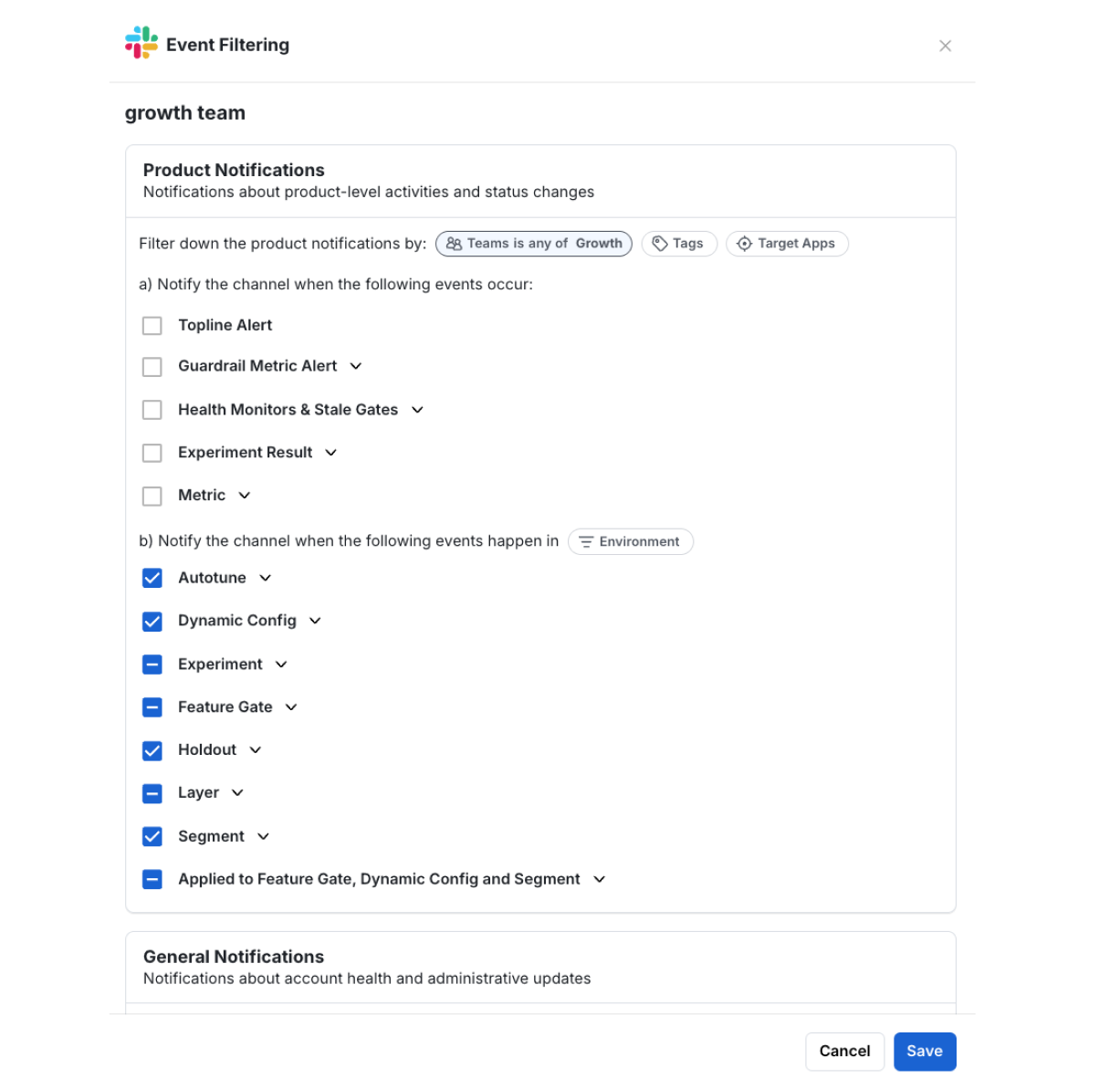
**Step 3:** Choose a Slack channel where you would like to receive Statsig's notifications.
**Step 4:** Filter to the relevant Team and choose the notifications you want to subscribe to.
 ***
## Personal Notifications
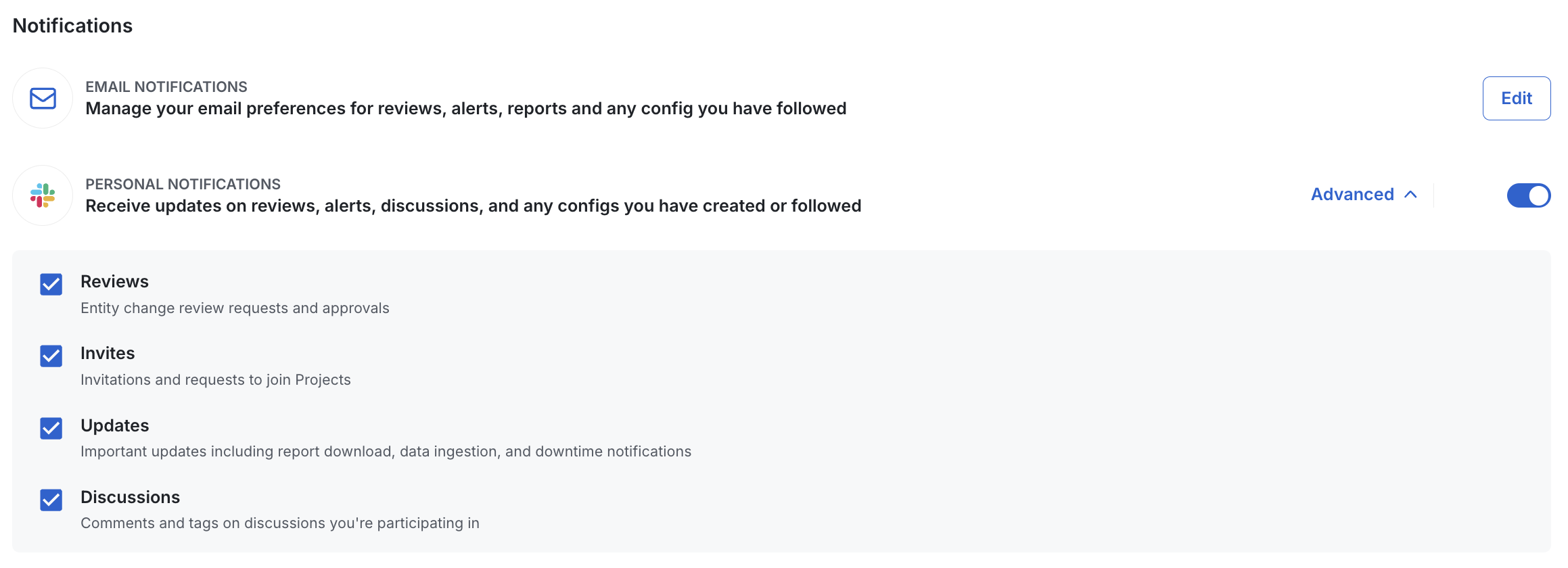
**Step 5:** Go to **Settings** -> **[My Account](https://console.statsig.com/account_settings)** and navigate to Notifications section.
In this page, you can also manage your email preferences for receiving notifications on your email.
***
## Personal Notifications
**Step 5:** Go to **Settings** -> **[My Account](https://console.statsig.com/account_settings)** and navigate to Notifications section.
In this page, you can also manage your email preferences for receiving notifications on your email.