> ## Documentation Index
> Fetch the complete documentation index at: https://statsig-4b2ff144-serverless-cloudflare.mintlify.site/llms.txt
> Use this file to discover all available pages before exploring further.
# Trigger a Release Pipeline
> Learn how to attach pipelines to features and trigger controlled rollouts
A Release Pipeline is activated when you make changes to a feature gate or dynamic config that has a pipeline attached to it.
## Attaching a Pipeline
Before triggering a release, you must first attach a pipeline to your feature gate or dynamic config. The Statsig console offers two methods for attaching a Release Pipeline.
### During Feature Creation
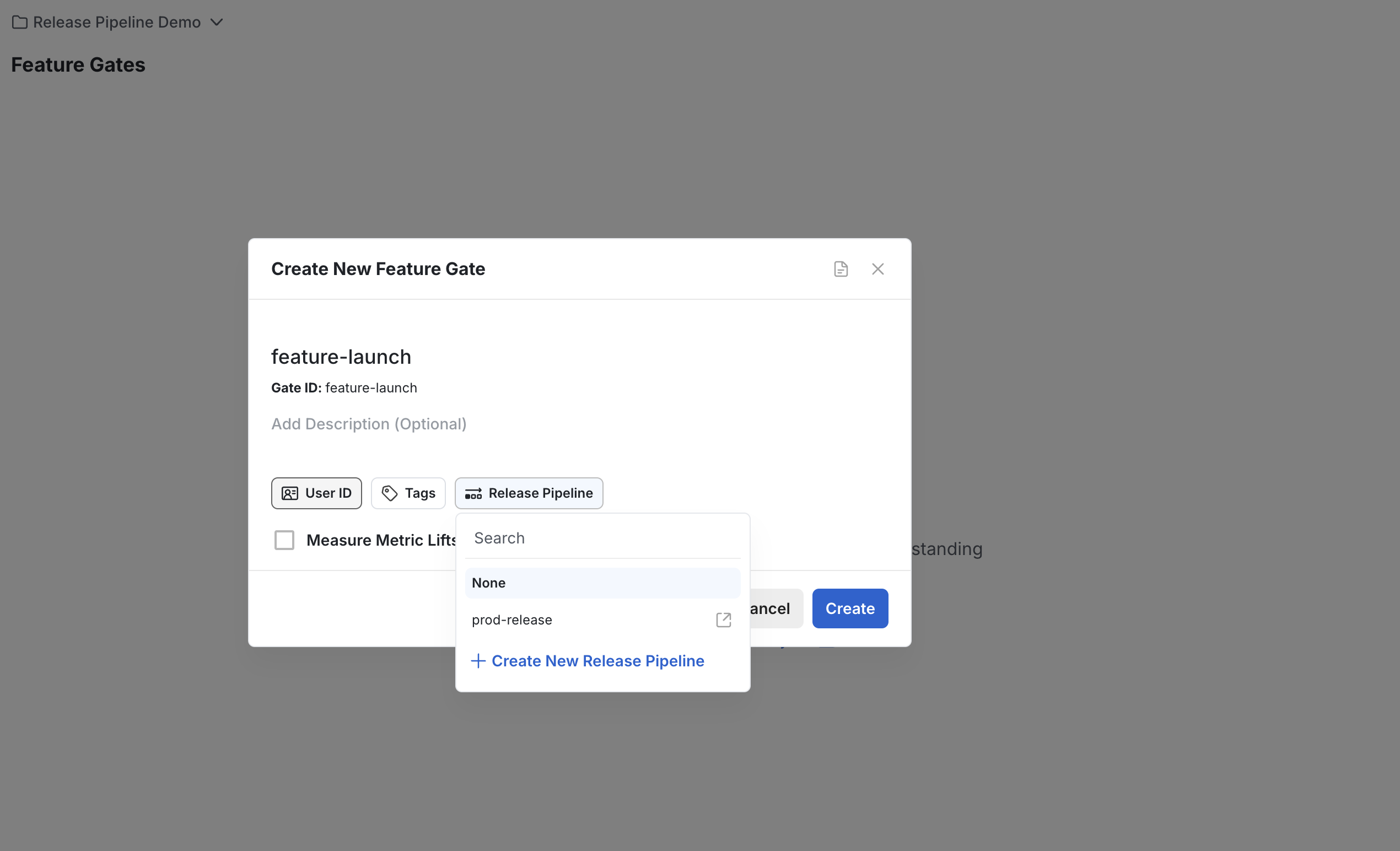
You can select a Release Pipeline directly in the creation modal when setting up a new feature gate or dynamic config:
 ### To an Existing Feature
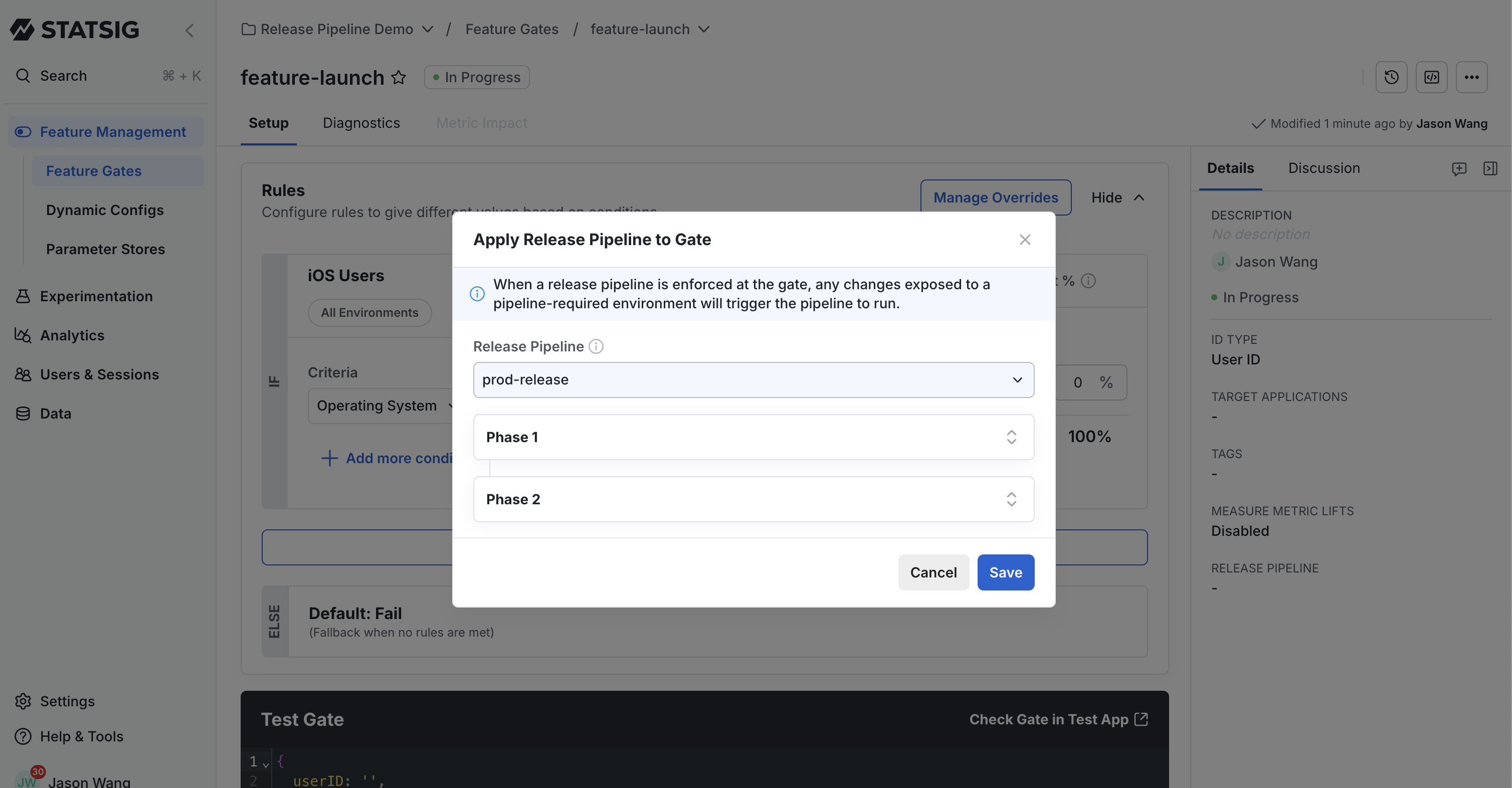
For an existing feature gate or dynamic config, you can attach a Release Pipeline through the sidebar settings:
### To an Existing Feature
For an existing feature gate or dynamic config, you can attach a Release Pipeline through the sidebar settings:
 :::note
You must have at least one Release Pipeline created before it will appear in the dropdown menu. See [Create and Manage Pipelines](/release-pipeline/create-and-manage) for instructions on creating pipelines.
:::
## Starting a Rollout
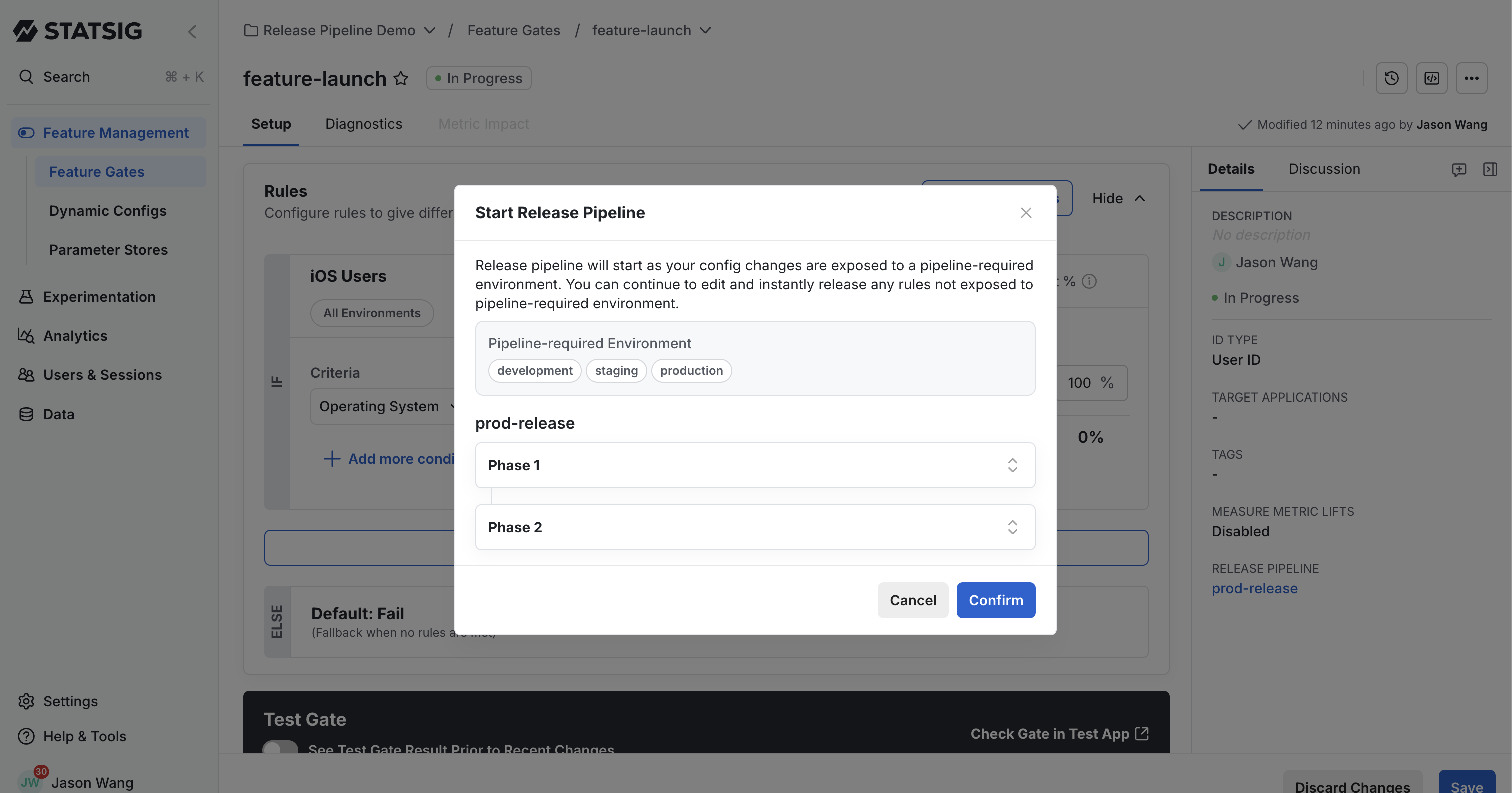
When a Release Pipeline is attached, making changes to your feature gate or dynamic config will automatically initiate the pipeline process:
1. Make your desired changes to the feature gate or dynamic config
2. Click **Save** to commit the changes
3. A confirmation dialog will appear, informing you that changes will progress through the pipeline
4. Review the information and click **Confirm** to proceed
The system will then begin the rollout following the phases defined in the attached pipeline.
:::note
You must have at least one Release Pipeline created before it will appear in the dropdown menu. See [Create and Manage Pipelines](/release-pipeline/create-and-manage) for instructions on creating pipelines.
:::
## Starting a Rollout
When a Release Pipeline is attached, making changes to your feature gate or dynamic config will automatically initiate the pipeline process:
1. Make your desired changes to the feature gate or dynamic config
2. Click **Save** to commit the changes
3. A confirmation dialog will appear, informing you that changes will progress through the pipeline
4. Review the information and click **Confirm** to proceed
The system will then begin the rollout following the phases defined in the attached pipeline.
 ## Viewing Release Status
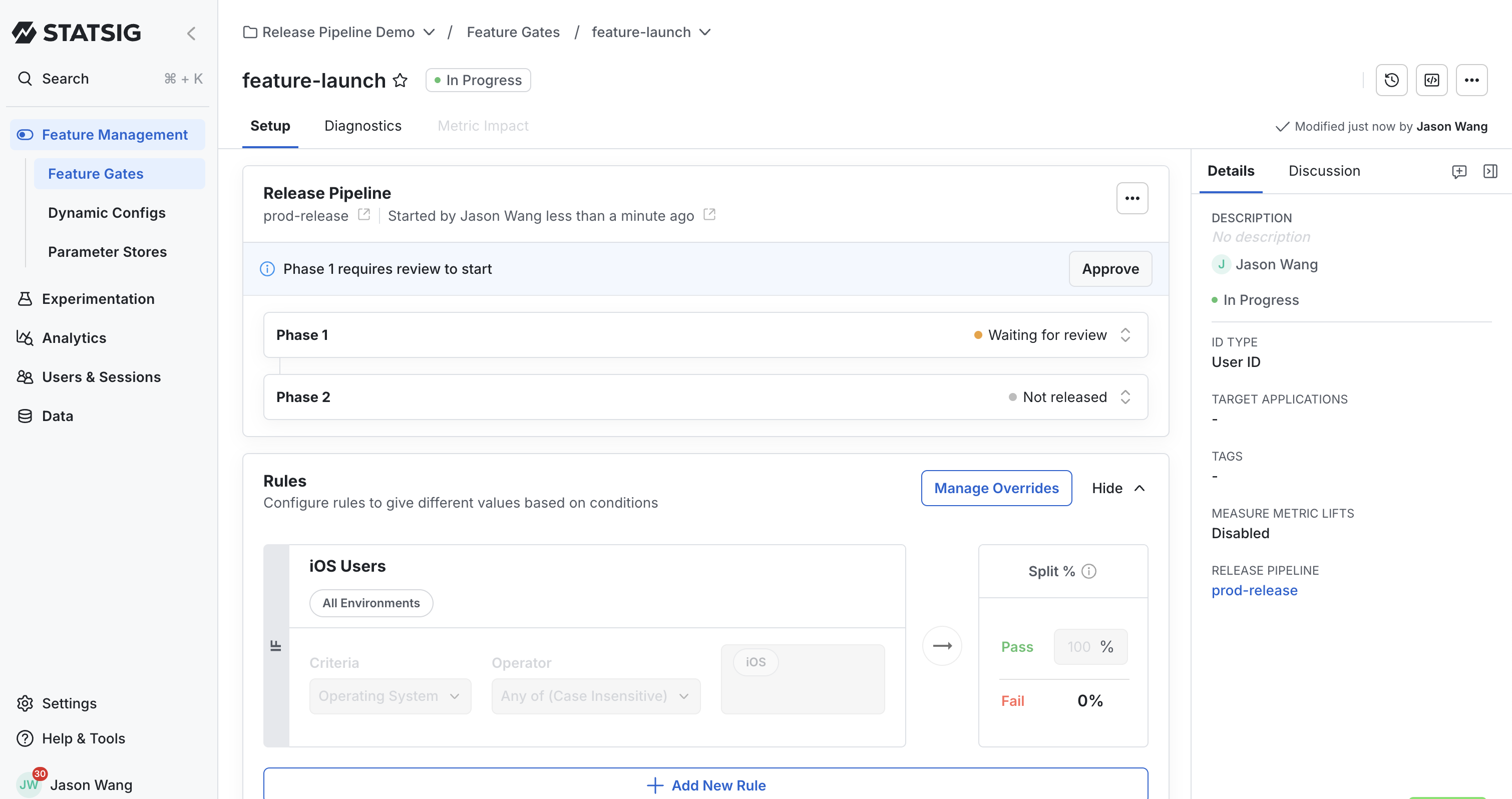
Once a Release Pipeline is triggered, you can monitor its progress:
1. At the top of the feature gate or dynamic config page, a status banner will appear
2. This banner displays the current phase and overall progress through the pipeline
## Viewing Release Status
Once a Release Pipeline is triggered, you can monitor its progress:
1. At the top of the feature gate or dynamic config page, a status banner will appear
2. This banner displays the current phase and overall progress through the pipeline
 For information about controlling an ongoing release, including approvals and aborts, see [Managing Release Actions](/release-pipeline/actions).
## Frequently Asked Questions
**Q: Can I attach different Release Pipelines to different feature gates?**\
A: Yes, each feature gate or dynamic config can use a different pipeline based on its specific rollout needs. However, a single feature gate or dynamic config can only have one Release Pipeline attached at a time.
**Q: What happens if I need to cancel a release in progress?**\
A: You can abort an ongoing release using the actions menu in the release details view. See [Managing Release Actions](/release-pipeline/actions) for complete instructions on how to abort a release.
For information about controlling an ongoing release, including approvals and aborts, see [Managing Release Actions](/release-pipeline/actions).
## Frequently Asked Questions
**Q: Can I attach different Release Pipelines to different feature gates?**\
A: Yes, each feature gate or dynamic config can use a different pipeline based on its specific rollout needs. However, a single feature gate or dynamic config can only have one Release Pipeline attached at a time.
**Q: What happens if I need to cancel a release in progress?**\
A: You can abort an ongoing release using the actions menu in the release details view. See [Managing Release Actions](/release-pipeline/actions) for complete instructions on how to abort a release.